 UI Framework for Unity
Smooth, organized game UI, AI-ready
Building with AI? AI tools write a lot of code fast, and without a structure it piles up in places nobody can track. This framework gives every screen the same shape: its own Addressable scene, its own script, its own place in the state stack. Generated code always has a clear place to go, so your project stays easy to follow as it grows. Transitions animate with no flash, and an editor window writes the scripts, scenes and config for you.
One screen, four layers. In UI Framework every layer is its own element scene, and a state stacks them into the screen your player sees.

Game UI turns into a tangle. It doesn't have to.
Almost every game starts its UI the same way, and almost every game hits the same wall a few months in. If any of this sounds familiar, the framework was made for you.
- One giant UI scene.Every screen lives in one scene or prefab, loads at boot, and two people can't touch it at the same time without a merge conflict.
- SetActive spaghetti.Screens switch each other on and off by hand. A popup stays open, a canvas never closes, and Back goes to the wrong place.
- A new screen manager for every game.Each project rewrites its own, with its own bugs, and only the person who wrote it knows how it works.
- Motion as an afterthought.Screens pop in, flash an empty frame, or move differently on every screen because each one was tuned by hand.
- Managers and singletons everywhere.
UIManager.Instance,PopupManager.Instance,GameManager.Instance: every screen reaches into a handful of singletons. It only works with all of them in the scene, start-up order starts to matter, and one nullInstancebreaks a screen. - UI logic tangled with game logic and the backend.A Buy button's
OnClickchecks the price, calls the server, updates the save and opens a popup. Change the backend and you are rewriting screens; test the economy and you need the UI running. - Setup by hand.Screens are wired with drag-and-drop references to managers in other scenes, sort orders are picked by feel, and a renamed object silently breaks a screen nobody opened today.
- One config the whole team takes turns on.Every new screen or state edits the same registry asset, so people lock it, push it to dev, and only then can the next person start.
Scattered screens settle into one tree. A state stack and a single scene contract do the same to your UI.
What changes when you use it
| Without it | With UI Framework | |
|---|---|---|
| A new screen | Build a prefab, wire references, register it with a manager by hand | New Element creates the script and the scene; Build Runtime UiConfig makes it Addressable and registers it |
| Navigation | SetActive calls spread through the code | await UiManager.ShowState<StoreUiState>() |
| Popups | Sort-order fights and hand-written close logic | Pushed on top with additive: true, closed with HideUI() |
| Shared bars | Copied into every screen, or reloaded with a flicker | Shared elements stay loaded and on screen while screens change |
| Memory | Every screen loaded at boot | Scenes load on demand and unload when no state uses them |
| Motion | Tuned by hand, screen by screen | Ten tuned presets, chosen per element or per call |
| Data | Screens reach into singletons | Data is passed in through Populate, so every screen opens on its own |
| Dependencies | Screens call game managers and the backend directly | Screens only show what they are given and report taps; game systems and the backend never meet the UI |
| Setup | References dragged between scenes, sort orders picked by feel | Generated scenes with one contract; canvas, sorting and Addressables set per element in the editor |
| Teamwork | One shared config: lock it, push to dev, then the next person goes | One asset per state and one scene per element: branches add screens in parallel and merge cleanly |
| Structure | Drifts silently until something breaks | Every scene validated, and fixed in one click |
Watch a screen come together
This is the showcase app, pulled apart into the element scenes it is made of. Press Next to run each call, and the figure tells you what UiManager loaded, kept and unloaded. Point at any layer to see what it is.
State stack
Loaded scenes
UI is only the view
Scroll to pull a typical game UI apart and put every piece where it belongs.
Most game UIs are one big layer.
Screens, managers and the backend client sit side by side, and every piece calls every other one. Each red line is a direct dependency: 22 of them, through six singletons. Scroll to pull it apart.
Lift the screens out.
Home, Store, Profile and the Reward popup become UI scenes. They only show what they are given and report taps, so every red line from a screen into a manager goes with them.
UIManager and PopupManager become one door.
UiManager loads the scenes a state needs, hands your params to every element in Populate, animates and unloads. A popup is just another state, so PopupManager merges into it.
GameManager becomes your app.
One navigator decides what to show and when. It calls ShowState and HideUI with the params each screen needs, and it is the only code that talks to UiManager.
The other managers become game systems.
Economy and Audio keep the rules of your game. Your app calls them; they never reference a screen, so they run and test without any UI.
What's left is the backend.
Only Economy talks to the server, and nothing above it knows the server exists. Now watch a Buy tap: it travels down to the game, and the reward comes back up through UiManager.
The framework stays out of your architecture: it has no service locator, no signals and no network code, and params are plain C# classes. These layers are the structure it makes easy, and the showcase app follows it with one navigator for every call.
Why teams use it
One scene per screen
Each UI element is an Addressable scene. Artists and designers work in their own scene without merge fights, and memory follows exactly what is on screen.
A real state stack
Replace the whole UI, or push popups and overlays on top. Close them with one call. No hand-rolled screen managers, no forgotten canvases.
Shared elements stay put
A nav bar or currency header used by several screens stays loaded and on screen while the screens change underneath it. It never reloads and never re-animates.
Animated by default
Ten calm, tuned presets: fade, zoom, four slides, pops and shake. Pick one per element in the editor, or override it for a single call from code.
No flash, no empty frame
The new screen animates in while the old one animates out. Elements are prepared in their start pose before their first frame, so nothing pops.
Editor tooling
The UI Setup Manager creates element scripts and scenes, builds states, validates every scene, fixes structure in one click and generates the runtime config.
Made for teams: no config to lock
Many UI tools keep every screen in one shared registry. Adding a screen means locking that file and pushing it to dev before anyone else can add theirs. UI Framework has no such file to fight over, so the whole team adds screens and states at the same time.
One shared registry
Two people, one shared file: someone waits, or someone resolves a conflict.
One file per state, one scene per element
Two people, separate files: both merge, nothing to resolve.
UiStateDefinition asset. Two branches never edit the same one.RuntimeUiConfig and the Addressables group are rebuilt by Build Runtime UiConfig, never merged by hand.UiEditorConfig only holds paths and namespaces.Four ideas, live
The whole framework rests on four ideas. Each figure below is live: move your pointer over it, or tap it on a phone.
The state stack
Screens and popups stack up. Lift the frames above and the screen underneath is still there, exactly as HideUI() leaves it.
Shared, counted scenes
UiManager sits at the centre. A scene links in when a state needs it and stays loaded while any state on the stack still uses it.
One call between screens
ShowState takes you to any screen. The old one animates out while the new one animates in, with no empty frame in between.
One scene contract
Every element scene has the same shape. The editor checks them all and snaps a scene that drifted back into shape in one click.
The scene contract →How it works, in one picture
You define states (a screen, a popup) as lists of element scenes. At runtime, UiManager loads the scenes a state needs, hands every element its data, plays the transitions and unloads what nothing uses any more.
As simple as it looks
private async void Start()
{
    try
    {
        await UiManager.InitializeAsync();
        await UiManager.ShowState<MainMenuUiState>();
    }
    catch (Exception exception)
    {
        Debug.LogError("[Bootstrap] UI failed to start: " + exception);
    }
}RewardParams reward = new RewardParams();
reward.Coins = 250;
// additive: true pushes the popup on top of the current screen.
await UiManager.ShowState<RewardUiState>(reward, additive: true);
// Later, from the popup's Claim button:
await UiManager.HideUI();The professional approach, ready on day one
Large games don't keep their UI in one scene. They split it into content the team can load, own and ship separately. A state machine drives what is on screen, data is passed in, and tooling guards the structure. UI Framework gives you that approach from the first screen. An indie team builds like a professional studio, and a prototype is production-ready by default: when the game grows, nothing gets rewritten.
Built for production
Ref-counted scenes
Scenes are keyed by Addressables GUID and unloaded only when no state on the stack uses them.
Resilient transitions
An exception in your Populate is logged, and the stack is cleaned up anyway.
Scene contract
Every element scene has the same shape, checked and fixed by the editor, so animation always works.
Tested
EditMode tests for the editor tools, PlayMode tests that play the animations frame by frame.
From install to your first screen
Install the package, open the UI Setup Manager and show a screen from code. The Tutorial walks through every step with screenshots and videos.
Requirements
| Unity | 2022.3 or newer (the showcase project uses Unity 6) |
|---|---|
| Addressables | 1.21.0 or newer, installed automatically as a dependency |
| UI | UGUI (com.unity.ugui). Any content works inside your scenes: Text, TextMeshPro, images, your own components |
| Platforms | Everything Unity and Addressables support. All animation runs on unscaled time |
1. Install the package
In Unity, open and paste:
https://github.com/dawaniyah-games/UiFramework.git?path=Packages/com.dawaniyahgames.uiframeworkTo pin a version, append #vX.Y.Z (see Releases), or add it to Packages/manifest.json:
{
  "dependencies": {
    "com.dawaniyahgames.uiframework": "https://github.com/dawaniyah-games/UiFramework.git?path=Packages/com.dawaniyahgames.uiframework#v1.3.6"
  }
}
2. Set up the project
- Open .
- In the General tab press Create Config. Set your script and scene folders and your game's namespaces on the created
UiEditorConfig. - Check the Global Canvas Settings in the same tab: every new element scene starts with them.
3. Make your first screen
- Elements tab → ➕ New Element → name it
MainMenuUiElement→ Create. You get the script and a scene laid out asMainMenuUiElementRoot → Canvas → Root. - Build your UI under
Rootand pick a show and hide animation in the element's Animations section. - States tab → type
MainMenuUiStatenext to New state → ➕. Add theMainMenuUiElementscene to it. - General tab → Build Runtime UiConfig. Run it again after every state or scene change.
4. Show it from code
UiManager creates itself; don't add it to a scene. It loads the generated config from Addressables.
using System;
using UiFramework.Runtime.Manager;
using UnityEngine;

public class GameBootstrap : MonoBehaviour
{
    // async void is fine for Unity messages, as long as exceptions are caught and logged.
    private async void Start()
    {
        try
        {
            if (!UiManager.IsInitialized)
            {
                await UiManager.InitializeAsync();
            }

            await UiManager.ShowState<MainMenuUiState>();
        }
        catch (Exception exception)
        {
            Debug.LogError("[GameBootstrap] UI failed to start: " + exception);
        }
    }
}With the Addressables play mode set to Use Asset Database (), the screen appears right away. For a player build, build Addressables content first.
5. Give the screen its data
Whatever you pass to ShowState reaches every element of the state in Populate. Keep Populate idempotent: it runs again when another state reuses the scene.
using UiFramework.Core;
using UnityEngine;
using UnityEngine.UI;

public class MainMenuParams : UiPopulationParams
{
    public string PlayerName { get; set; }
}

public class MainMenuUiElement : UiElement
{
    [SerializeField] private Text welcomeLabel;

    public override void Populate(object context = null)
    {
        base.Populate(context);

        MainMenuParams data = context as MainMenuParams;
        if (data == null)
        {
            return;
        }

        welcomeLabel.text = "Welcome back, " + data.PlayerName;
    }
}MainMenuParams data = new MainMenuParams();
data.PlayerName = "Alex";
await UiManager.ShowState<MainMenuUiState>(data);Context is just an object. Pass a primitive and read it with context is int coins.
Default project layout
All paths are settings on your UiEditorConfig; these are the defaults.
| What | Where |
|---|---|
| Element scripts | Assets/Scripts/Ui/UiElements |
| Element scenes | Assets/Scenes/UiElements |
| State scripts | Assets/Scripts/Ui/UiStates |
| State definitions | Assets/UiConfigs/UiStateDefinitions |
| Runtime config (generated) | Assets/UiConfigs/RuntimeUiConfig.asset |
| Global canvas settings | Assets/UiConfigs/UiGlobalCanvasSettings.asset |
Build a screen with the UI Setup Manager
Ten steps from an empty project to a working screen with a popup. Every step has a short video. Open the editor with .
Since v1.3.6 the window is under ; the videos show the older menu.
Start here
See where you are heading first: the showcase app, a complete mobile game UI built only with UI Framework, with an intro, four tabs under shared bars, and reward, purchase and settings popups. Then build your own, one short video per step.
Video series
Steps
-
Create the config and check the canvas defaults
Open the General tab and press Create Config. It finds or creates a
UiEditorConfigasset that tells the tools where your scripts and scenes live and which namespaces to generate into.- Set
ElementNamespaceandStateNamespaceto your game's namespaces. - In Global Canvas Settings, choose the render mode and the Canvas Scaler values (default: Scale With Screen Size, 1080 × 1920, Expand). Every new element scene starts with them.
Defaults, not enforcementChanging the global settings never edits existing scenes. Each element can still differ, or adopt the defaults with Use Default Settings…
 Screenshot: General tab
docs/images/setup-general.pngThe General tab: config paths, namespaces, Global Canvas Settings and Build Runtime UiConfig. - Set
-
Create a UI element
Open the Elements tab and press ➕ New Element. The form opens in the right panel:
Name The class and scene name, e.g. StoreUiElementFrom Existing Scene Optional: convert a scene you already have. Its objects move under the new root, and you are offered a structure fix Include Parameters Class Also generates StoreUiElementParamsfor the data you pass inInclude Reference Class Also generates a StoreUiElementReferencehelperPress Create. You get the script and a scene built to the scene contract. After Unity compiles, the script is attached to
StoreUiElementRootautomatically. An existing script with the same name is never overwritten. Screenshot: New Element form
docs/images/setup-new-element.pngThe New Element form. -
Build the screen under Root
Open the scene (double-click it in the list). Every element scene has the same shape. Put all of your content under
Root: that object is what animates.- Lay things out with normal anchors; the Canvas Scaler handles screen sizes.
- Nested canvases are fine under
Root(for example a layer with a high sorting order). - Nothing may sit next to
Rootunder the Canvas, or it won't animate. - Popups usually put a full-screen dimmed backdrop as the first child of
Root.
StoreUiElementRoot UiElement script, the only root object └─ Canvas Canvas + CanvasScaler + GraphicRaycaster └─ Root stretched, the animation target ├─ Header ├─ ItemsGrid └─ … all your content Screenshot: element scene in the Hierarchy and Scene view
docs/images/scene-hierarchy.pngAn element scene: one root, one Canvas, one Root, then your content. -
Pick the show and hide animations
Select the element in the list. In its Animations section, choose a Show and a Hide preset. Each choice shows one line describing what it looks like, and the change is written straight into the scene.
See every preset moving on the Animations tab. Code can still override them for a single call with
UiTransition.
The Elements tab: search, status of every scene, and the selected element's Structure, Animations, Canvas and Addressables settings. (Illustration until the screenshot is added.) -
Validate and fix scene structure
Every scene in the list has a status: ✓ OK, ⚠ fixable, ✖ needs work by hand.
- Validate All logs one line per scene with its issues.
- Fix Structure… (one element) or Fix All Structure… shows exactly what will change, with a Now / After preview of the hierarchy, before it touches anything.
- Fixes only create and reparent objects, with Undo. They never delete anything; what needs manual work is listed under What to fix by hand….
- Only show elements with issues filters the list.
 Screenshot: Fix Structure confirmation with the Now / After preview
docs/images/setup-fix-dialog.pngEvery fix asks first and shows the hierarchy before and after. -
Canvas, sorting and Addressables per element
The Canvas section edits this scene's Render Mode, Sorting Order, UI Scale Mode, Reference Resolution, Screen Match Mode and Reference PPU in place. Use sorting order to stack layers, for example screens 0, bars 10, popups 100.
The Addressables section shows whether the scene is Addressable, its group and labels. Build Runtime UiConfig registers every scene a state uses for you.
-
Create a state and add its scenes
Open the States tab. Type the state name next to New state (for example
StoreUiState) and press ➕. It generates the state class: a type marker forShowState<StoreUiState>(). Its name must equal the state key.Select the state and use Add element scene: start typing and pick from the suggestions. Add the screen and every shared element it shows, for example
StoreUiElement,TopBarUiElementandNavBarUiElement.Shared elementsList your nav bar in every tab state. While you switch tabs it stays loaded and on screen, and only the screens animate.
 Screenshot: States tab
docs/images/setup-states.pngA state is a named list of element scenes. -
Build the runtime config
Back in General, press Build Runtime UiConfig. It turns your state definitions into the runtime
UiConfig, makes every element scene Addressable (groupUiElements) and registers the config under the addressUiConfig(groupGlobalConfigs).Run it after every changeNew state, renamed scene, added element: build again. The config is generated, so never edit it by hand. For player builds, also build Addressables content.
-
Show it from code and press Play
Initialize once at startup, then show states from anywhere: buttons, game events, your flow controller.
From a buttonprivate async void OnStoreClicked() { try { await UiManager.ShowState<StoreUiState>(); } catch (Exception exception) { Debug.LogError("[MainMenuUiElement] Could not open the store: " + exception); } } -
Add a popup
A popup is a state shown with
additive: true. It goes on top; the screen below stays loaded and visible.HideUIpops it again.- Create
ConfirmPurchaseUiElement, give it a dimmed backdrop and a panel, and set its Canvas Sorting Order above your screens. - Create
ConfirmPurchaseUiStatewith just that scene, and build the runtime config. - Open it with data, close it from its buttons:
Popup// ConfirmPurchaseUiElementParams is generated by "Include Parameters Class". ConfirmPurchaseUiElementParams purchase = new ConfirmPurchaseUiElementParams(); purchase.ItemName = "Neon Blade"; purchase.Price = 250; await UiManager.ShowState<ConfirmPurchaseUiState>(purchase, additive: true); // In the popup's Cancel / Buy handler: await UiManager.HideUI(); - Create
Checklist when something doesn't show
- The state class name equals the state key exactly.
- Build Runtime UiConfig ran after your last change.
- The Addressables play mode script is Use Asset Database, or content is built.
- The element's scene shows ✓ in the Elements tab.
- There is one EventSystem and, for Screen Space – Camera canvases, a camera assigned at runtime.
- The Console has no
[UiManager]errors.
How the framework thinks
Five ideas explain everything: element scenes, states, the stack, context and shared elements.
Vocabulary
| Term | Meaning |
|---|---|
| Element scene | A Unity scene with one root object <Name>Root holding a UiElement. The unit of loading. |
| UiElement | A MonoBehaviour that receives data in Populate(object context) and owns its show / hide animation presets. |
| State | A named set of element scenes, identified by a state key, e.g. StoreUiState. |
| Context | The object passed to ShowState, forwarded unchanged to every element of the state. Usually a UiPopulationParams subclass. |
| Shared element | A scene used by consecutive states. It stays loaded, is re-populated, and is not animated. |
An element's lifecycle
The state stack
Non-additive (the default) replaces the whole stack: the new state animates in while every state on the stack animates out, then the old states are released.
Additive pushes on top, for popups and overlays. The states below stay loaded and visible.
HideUI() pops the top state, plays its hide animations and releases its scenes.
ResetUIAsync() hides and unloads everything.
Shared elements and reference counting
Scenes are identified by their Addressables GUID and counted per state on the stack. The new state's scenes are counted before the old ones are released, so a scene used by both never unloads and reloads in between. A scene unloads only when its count reaches zero.
State classes are type markers
ShowState<StoreUiState>() finds the state whose key equals the class name. The runtime builds the state from the config, so code inside a UiState subclass never runs: keep behaviour in your elements. For keys without a class, use ShowStateByKey("StoreUiState").
The element scene contract
Animation targets the one object under the Canvas, so every element scene has the same shape. The Elements tab checks it and fixes it in one click.
Good to know
One call at a time
Overlapping ShowState / HideUI calls are not queued for you. Await each call, or route navigation through one place that queues them (the showcase's ShowcaseNavigator does).
HideUI and shared elements
HideUI doesn't skip elements shared with the state underneath, so keep popups to their own scenes.
Initialization
IsInitialized is true as soon as the manager exists, before the config has loaded. Await InitializeAsync() before showing states.
No data binding
The framework hands each element its context. Updating what is already on screen (a coin counter) is your code, for example events on your data.
Calm, tuned motion out of the box
Every element has a show and a hide preset, chosen in the Elements tab. Entrances ease out, exits are shorter and ease in, and every show and hide fades, so nothing pops in or out.
The ten presets
Each card loops: show, hold, hide.
What makes them feel good
Base pose
Each object's resting position, scale and alpha are recorded once. Every preset starts from it and returns to it, so repeated or interrupted animations never drift.
No skipped frames
A long frame, like the one where a scene loads, slows an animation slightly instead of jumping past half of it.
One animation per channel
A new animation stops older ones driving the same thing (position, scale, alpha). A button pop doesn't stop a slide; a new show stops a running hide.
No flash
Right after its scene loads, an element is put in its show start pose, in the same frame as Populate.
Overlapping transitions
In a screen switch, the old state hides while the new one shows: no empty frame in between.
Unscaled time
UI keeps animating while the game is paused (Time.timeScale = 0).
Override the animation for one call
UiTransition replaces the presets for a single ShowState or HideUI call, without changing the elements' configuration. Shared elements stay still either way.
// Show the Store with a zoom this time, whatever its elements are configured to do.
await UiManager.ShowState<StoreUiState>(context, transition: UiTransition.ShowWith(TweenPresets.ScaleKey));

// Close the top state by sliding it out to the right.
await UiManager.HideUI(UiTransition.HideWith(TweenPresets.SlideRightKey));

// Both sides at once: the new screen enters moving left, the old screen leaves moving left.
await UiManager.ShowStateByKey("ProfileUiState", context, false,
    new UiTransition(TweenPresets.SlideLeftKey, TweenPresets.SlideLeftKey));
Recipe: tabs that slide in the direction you tap
// Moving to a tab on the right slides everything left (like swiping), and the other way round.
private static UiTransition GetTabTransition(ShowcaseTab from, ShowcaseTab to)
{
    if (from == to)
    {
        return UiTransition.Default;
    }

    string preset = (int)to > (int)from ? TweenPresets.SlideLeftKey : TweenPresets.SlideRightKey;
    return new UiTransition(preset, preset);
}
Button feedback
The pops and shake also work on any transform, without fading, as feedback:
await TweenPresets.ClickPop(buyButton.transform);    // quick 1.08x pop
await TweenPresets.SettlePop(coinIcon.transform);    // gentle 1.04x pulse
await TweenPresets.ShakeLocal(buyButton.transform);  // "no": not enough coins
Your own animation
ShowAsync, HideAsync and PrepareForShow are virtual. Run extra motion next to the preset, or replace it completely. Tween.RunAsync gives you the same interruptible, frame-capped loop the presets use.
public class StoreUiElement : UiElement
{
    [SerializeField] private RectTransform[] cards;

    public override void PrepareForShow()
    {
        base.PrepareForShow();
        for (int i = 0; i < cards.Length; i++)
        {
            cards[i].localScale = Vector3.zero;
        }
    }

    public override async Task ShowAsync(string presetKey = null)
    {
        Task screen = base.ShowAsync(presetKey);
        for (int i = 0; i < cards.Length; i++)
        {
            RectTransform card = cards[i];
            await Tween.RunAsync(card, 0.18f, TweenCurves.EaseOut, true, CancellationToken.None, null, eased =>
            {
                card.localScale = Vector3.one * eased;
            });
        }

        await screen;
    }
}The showcase app adds Inspector components on top of these hooks: RevealOnShow, StaggeredReveal, FillBar, CountUpText, LoopMotion, PressFeedback and more. Designers add them to objects and the element plays them with its preset. They live in the sample project, so copy the ones you like. See Showcase.
A complete mobile game UI, included
The repository's host project is a small mobile-game shell built only from framework features: an intro, four tabs under a shared TopBar and NavBar, and three popups. Clone it, press Play, and read the code.

showcase-intro.png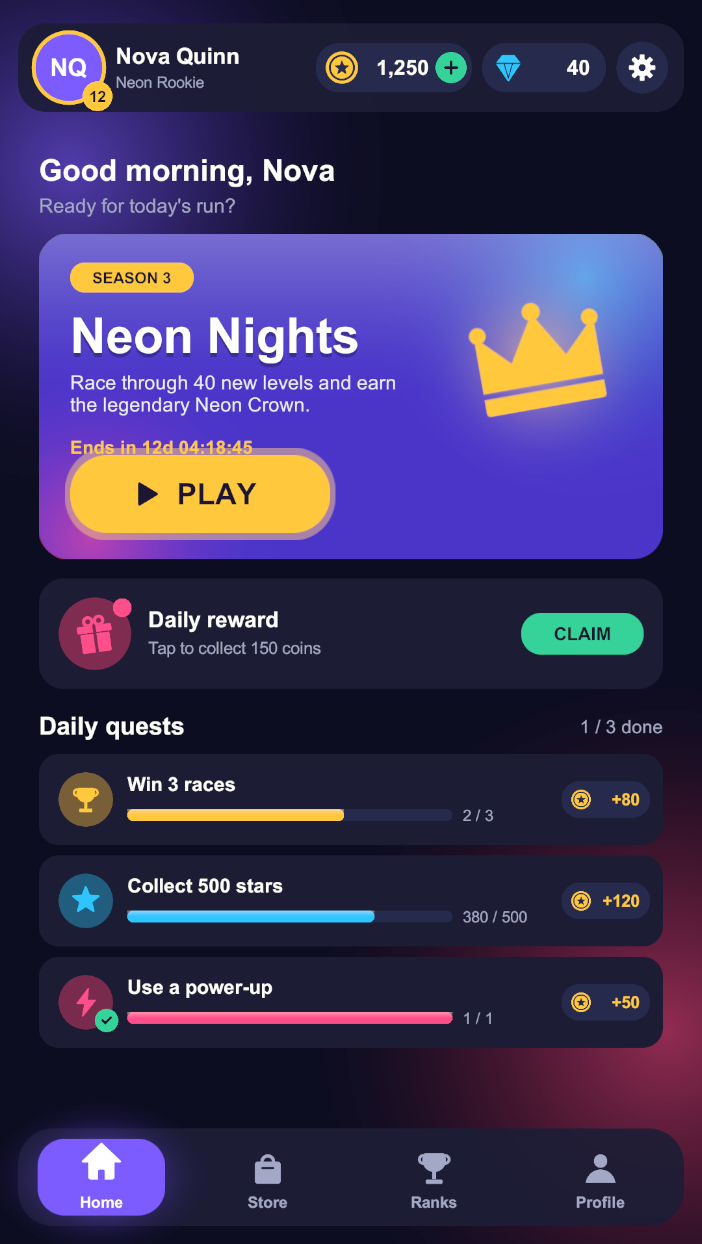
showcase-home.png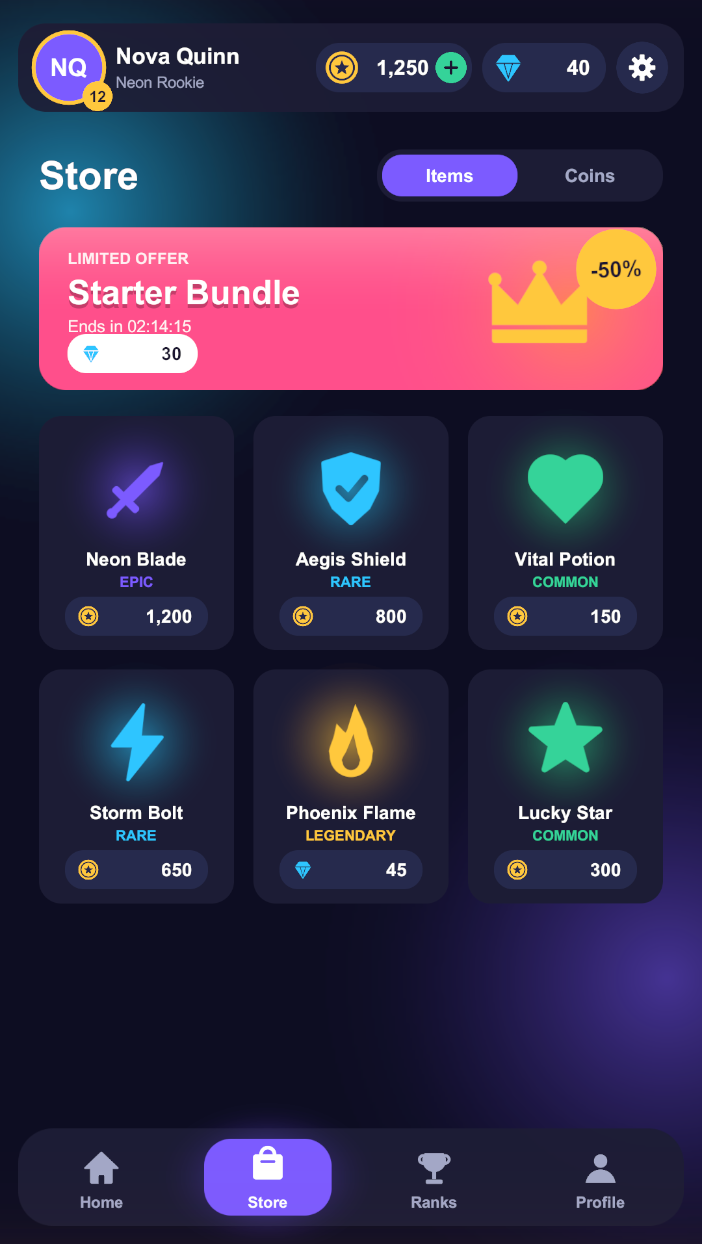
showcase-store.png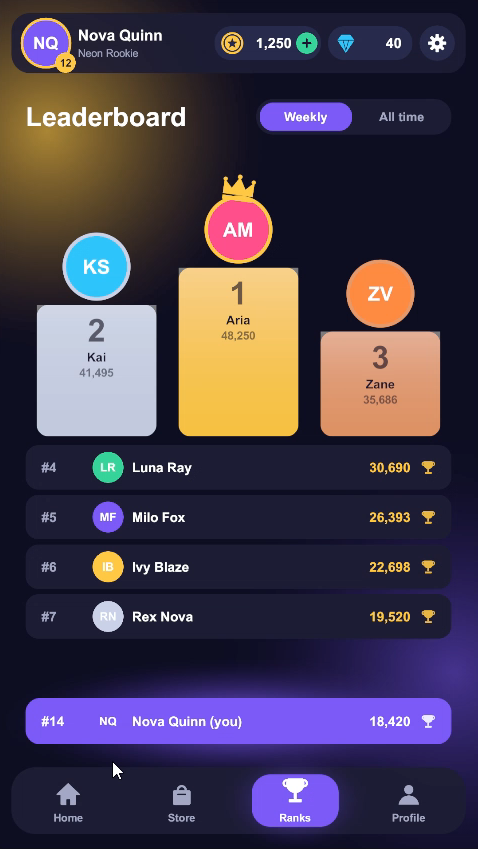
showcase-leaderboard.png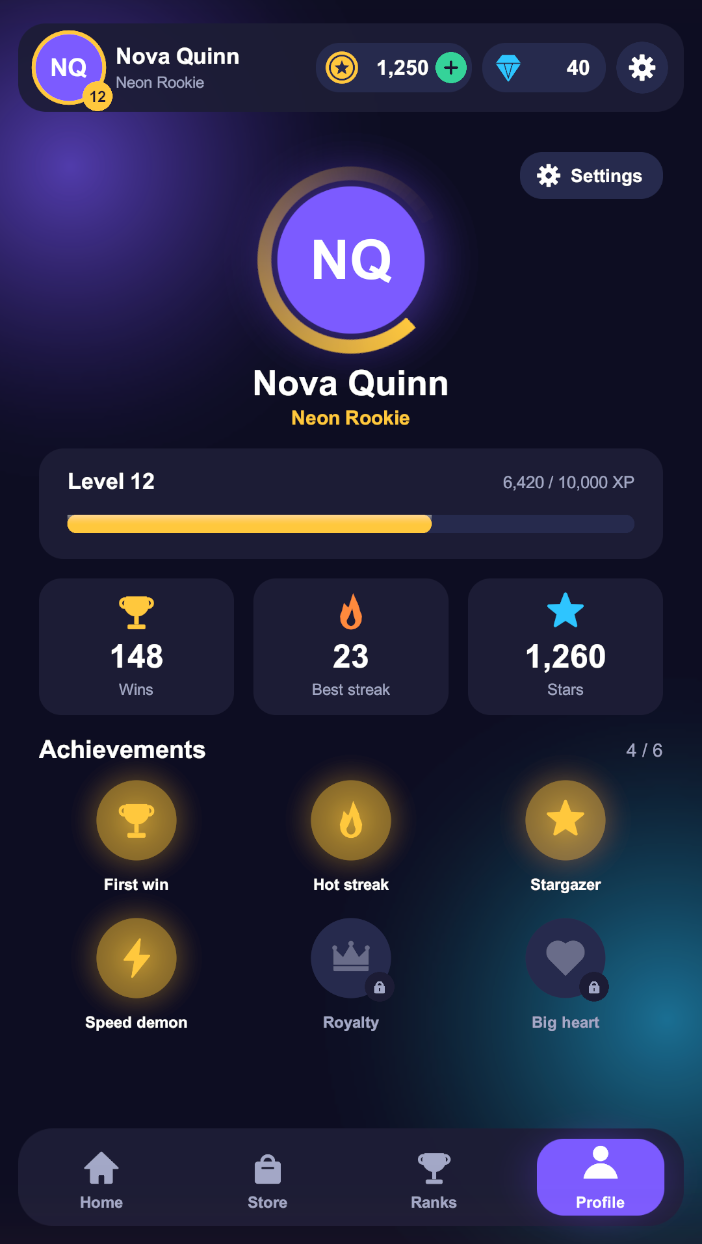
showcase-profile.png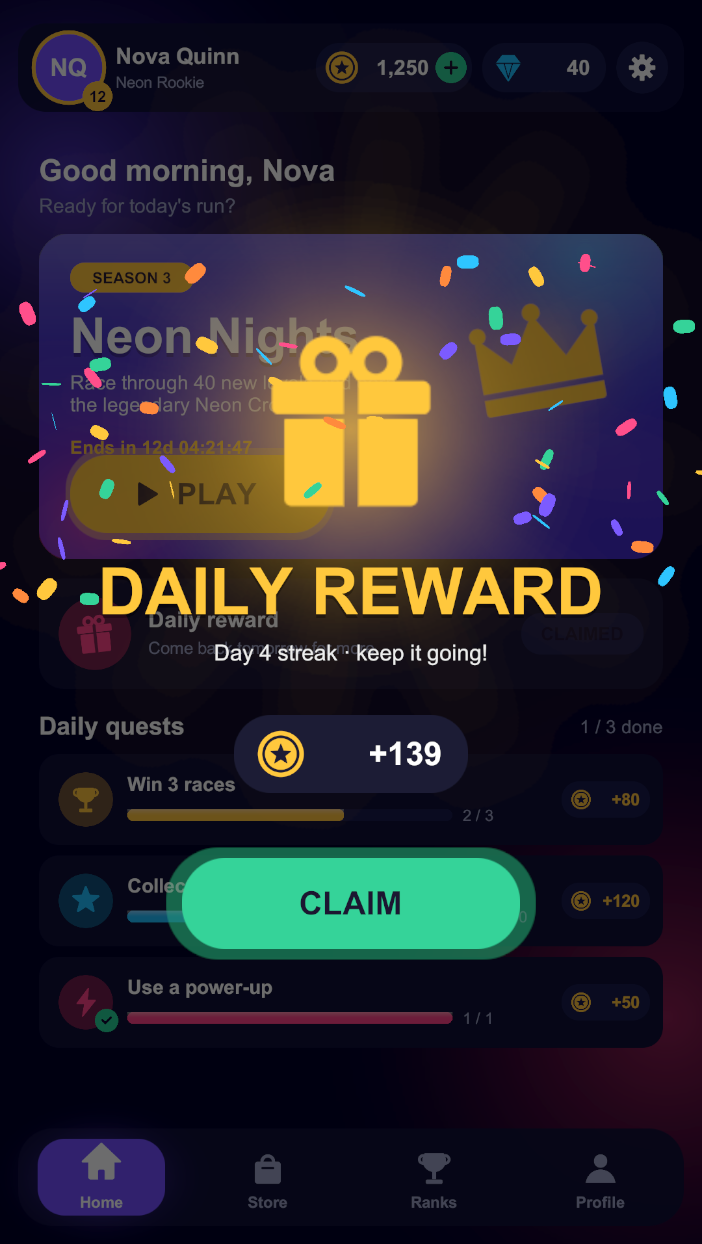
showcase-reward.png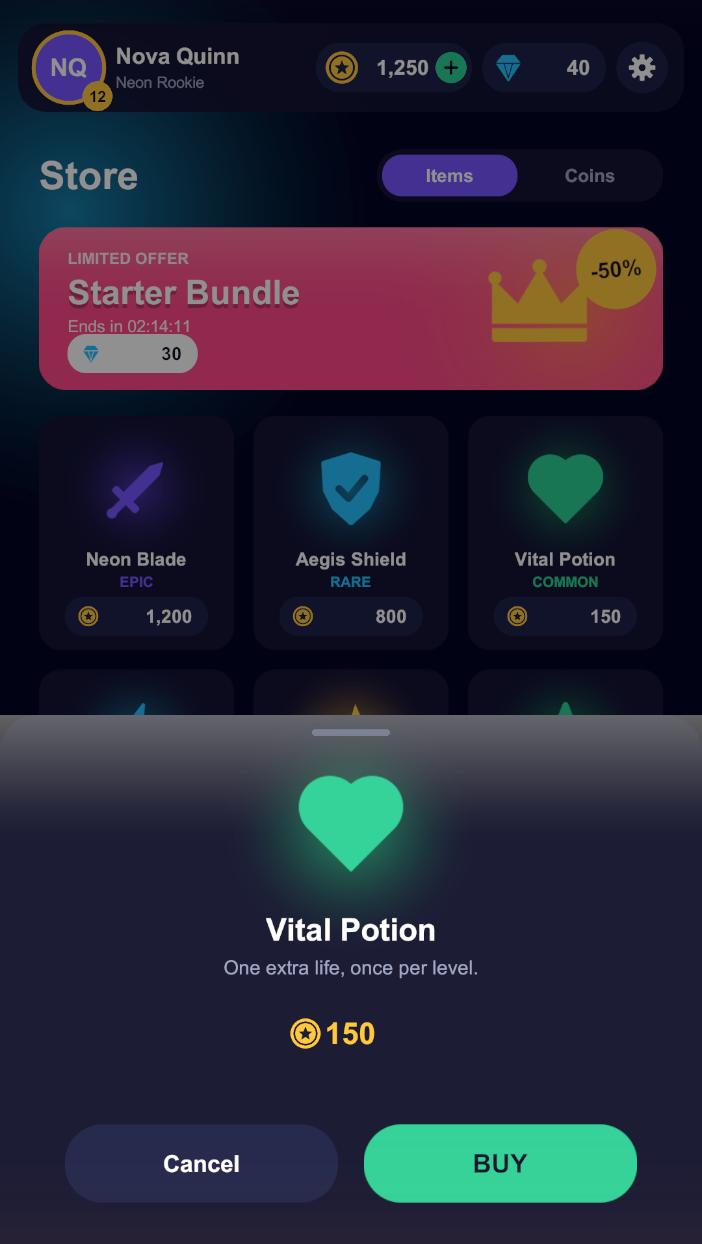
showcase-purchase.png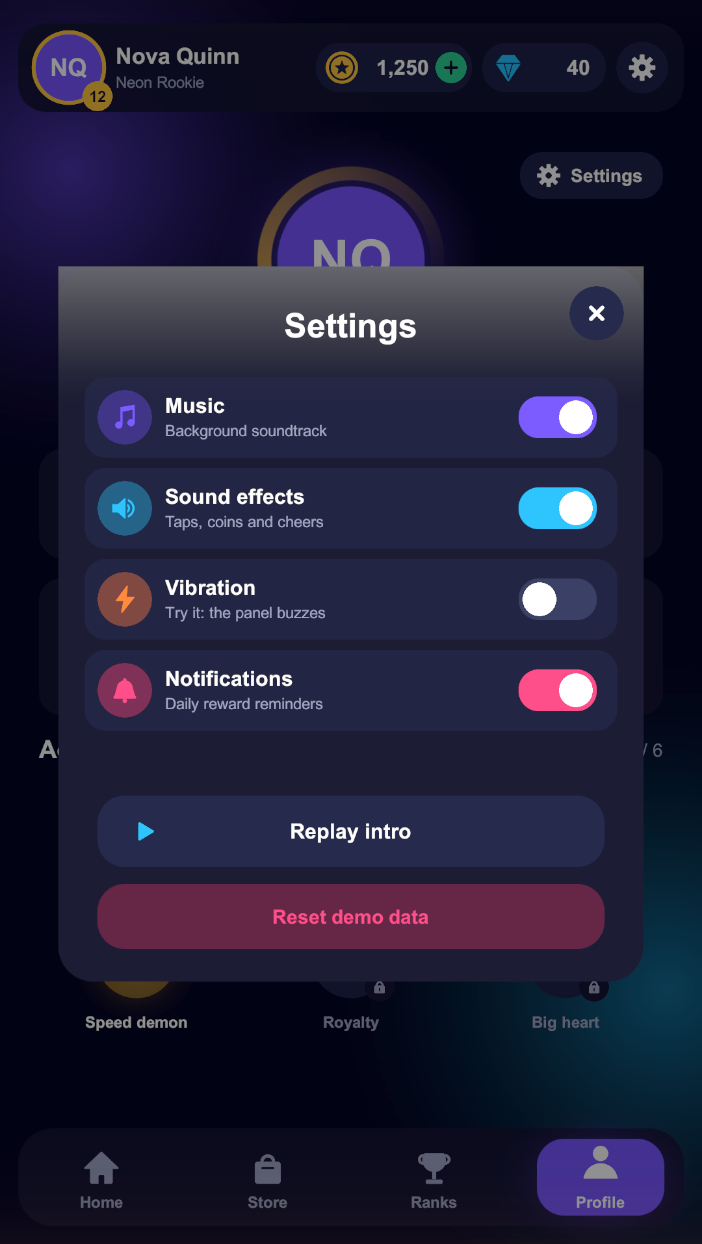
showcase-settings.pngRun it
- Clone dawaniyah-games/UiFramework and open it in Unity 6.
- Open
Assets/Scenes/Bootstrapper.unity, set the Game view to portrait 1080 × 1920, and press Play. - Open , change a screen's animation, and play again.
States in the app
| State | Element scenes | How it is shown |
|---|---|---|
IntroUiState | IntroUiElement | First, by the bootstrapper. Its loading ends by entering Home |
MainMenuUiState, StoreUiState, LeaderboardUiState, ProfileUiState | screen + TopBarUiElement + NavBarUiElement | Non-additive; the bars are shared and never re-animate |
SettingsUiState, RewardUiState, ConfirmPurchaseUiState | one popup scene each | Additive over the current tab, closed with HideUI |
Patterns worth copying
One navigator
ShowcaseNavigator is the only caller of ShowState / HideUI. It queues calls so they never overlap, keeps only the last tab tapped, and allows one popup at a time.
Context everywhere
Tab states get a TabUiParams; the shared NavBar reads the tab from the same object, so it is right however the tab was reached.
Shared re-population
The TopBar wires itself once and refreshes on every Populate. When the Store is already on screen, a second Populate switches its page in place.
Popups that look right
The popup's Fade preset fades the dimmed backdrop; only the panel moves, through a RevealOnShow, so the backdrop never slides.
Inspector choreography
RevealOnShow, StaggeredReveal, FillBar and CountUpText play when the element shows; LoopMotion, ShimmerSweep, ConfettiBurst and CoinFlyLayer add life.
One camera, one EventSystem
The bootstrapper keeps them in a DontDestroyOnLoad root, and UiCanvasCamera assigns the camera to every Screen Space – Camera canvas as its scene loads.
See it in motion
Everything you call
The public surface is small on purpose. All async calls return a plain System.Threading.Tasks.Task.
UiManager UiFramework.Runtime.Manager
| Call | What it does |
|---|---|
InitializeAsync(UiState defaultState = null) | Creates the manager (kept with DontDestroyOnLoad) and loads UiConfig from Addressables. Safe to call again |
ShowState<T>(object context = null, bool additive = false, UiTransition transition = null) | Shows the state whose key equals T's class name |
ShowStateByKey(string stateKey, object context = null, bool additive = false, UiTransition transition = null) | Shows a state by key |
HideUI(UiTransition transition = null) | Pops the top state, plays its hide animations and releases its scenes |
ResetUIAsync() | Hides and unloads every state |
GetCurrentState() | The state being loaded, otherwise the top of the stack, otherwise null |
IsLastSceneActive<T>() | Whether T is the top state |
TryGetUiStateKeyName<T>(out string key) | The key registered for T |
IsInitialized | True once InitializeAsync created the manager |
UiElement UiFramework.Core
| Member | Use |
|---|---|
Populate(object context = null) | Override to read your data. Runs on every show of the scene, including when shared; keep it idempotent |
PrepareForShow() / PrepareForShow(string presetKey) | Puts the element in its show start pose before its first frame. The string overload runs when a UiTransition overrides the preset |
ShowAsync(string presetKey = null) | Plays the show animation. Override to add or replace motion |
HideAsync(string presetKey = null) | Plays the hide animation |
Serialized showAnimationPreset, hideAnimationPreset | Set in the Elements tab |
UiTransition UiFramework.Core
| Member | Use |
|---|---|
UiTransition.ShowWith(string showPreset) | Override only the show animation |
UiTransition.HideWith(string hidePreset) | Override only the hide animation |
new UiTransition(string showPreset, string hidePreset) | Override both; null keeps each element's own |
UiTransition.Default | No override |
Preset names are matched ignoring case. An unknown name logs a warning and falls back to the elements' own animations, so a typo never breaks navigation.
TweenPresets and Tween UiFramework.Tweening
| Member | Use |
|---|---|
NoneKey, FadeKey, ScaleKey, SlideLeftKey, SlideRightKey, SlideUpKey, SlideDownKey, ClickPopKey, SettlePopKey, ShakeKey | Preset names |
PlayAsync(string presetKey, GameObject target, bool isShow) | Plays a preset on any object |
PrepareShow(string presetKey, GameObject target) | Puts an object in a preset's start pose |
ClickPop, SettlePop, ShakeLocal | Feedback effects, no fade |
Describe(string presetKey, bool isShow), GetPresetKeys(), TryGetPresetKey | For tools and menus |
Tween.RunAsync(owner, duration, ease, unscaled, ct, keepRunning, apply) | The shared animation loop: frame-capped, stops when the owner is destroyed or keepRunning turns false |
TweenCurves.EaseOut, EaseIn, EaseInOut, Linear | Curves |
Other types
UiState | Base class for state type markers: public class StoreUiState : UiState, generated by the States tab |
UiPopulationParams | Base for the data you pass as context |
UiElementReference | Base for generated element reference helpers |
Answers before you ask
Troubleshooting
"No UI state key registered for MyUiState"
The state class name must equal the state key exactly, and Build Runtime UiConfig must have run after you created the state.
"Failed to locate UiConfig via Addressables"
Run Build Runtime UiConfig, then make sure Addressables can find it: play mode script Use Asset Database in the editor, or build Addressables content for a player.
Nothing appears on screen
Check the element's status in the Elements tab (✓), that your content is under Root, that there is an EventSystem and, for Screen Space – Camera canvases, that a camera is assigned at runtime. Look for [UiManager] errors in the Console.
My list doubles every time I come back to the screen
Populate runs again when a state reuses the scene. Rebuild lists instead of appending, and guard one-time setup with a flag.
Code in my UiState subclass never runs
State classes are only type markers; the runtime builds states from the config. Put behaviour in elements.
Two fast taps show the wrong screen
Calls aren't queued for you. Await each call, or route navigation through one place that queues calls, like the showcase's ShowcaseNavigator.
Questions
Can several people add screens and states at the same time?
Yes. Each state is its own UiStateDefinition asset and each element its own scene and script, so parallel branches add different files and merge cleanly. The only shared files, RuntimeUiConfig and the Addressables group, are generated: after a merge, press Build Runtime UiConfig and they are rebuilt from the state definitions. Never resolve them by hand.
Does it work with TextMeshPro, my own components, my art?
Yes. The framework only cares about the scene's shape; anything UGUI can draw works inside Root.
Screen Space Overlay or Camera?
Both. Pick the default in Global Canvas Settings and per element in the Canvas section. With Camera, assign your UI camera at runtime as scenes load (the showcase's UiCanvasCamera shows how).
Can I load UI scenes from a remote content server?
Element scenes are ordinary Addressables, so any Addressables setup works, including remote groups.
Is it heavy on mobile?
Only what is on screen is loaded. Animations use a small allocation-light loop on unscaled time, and shared elements are never reloaded.
Can I add my own animation presets?
Override ShowAsync / HideAsync / PrepareForShow in an element for one-off motion, or contribute a preset to TweenPresets.
What does it cost?
Nothing. It's open source under the MIT license.
Open an issue or start a discussion.